

Chests for Chrome
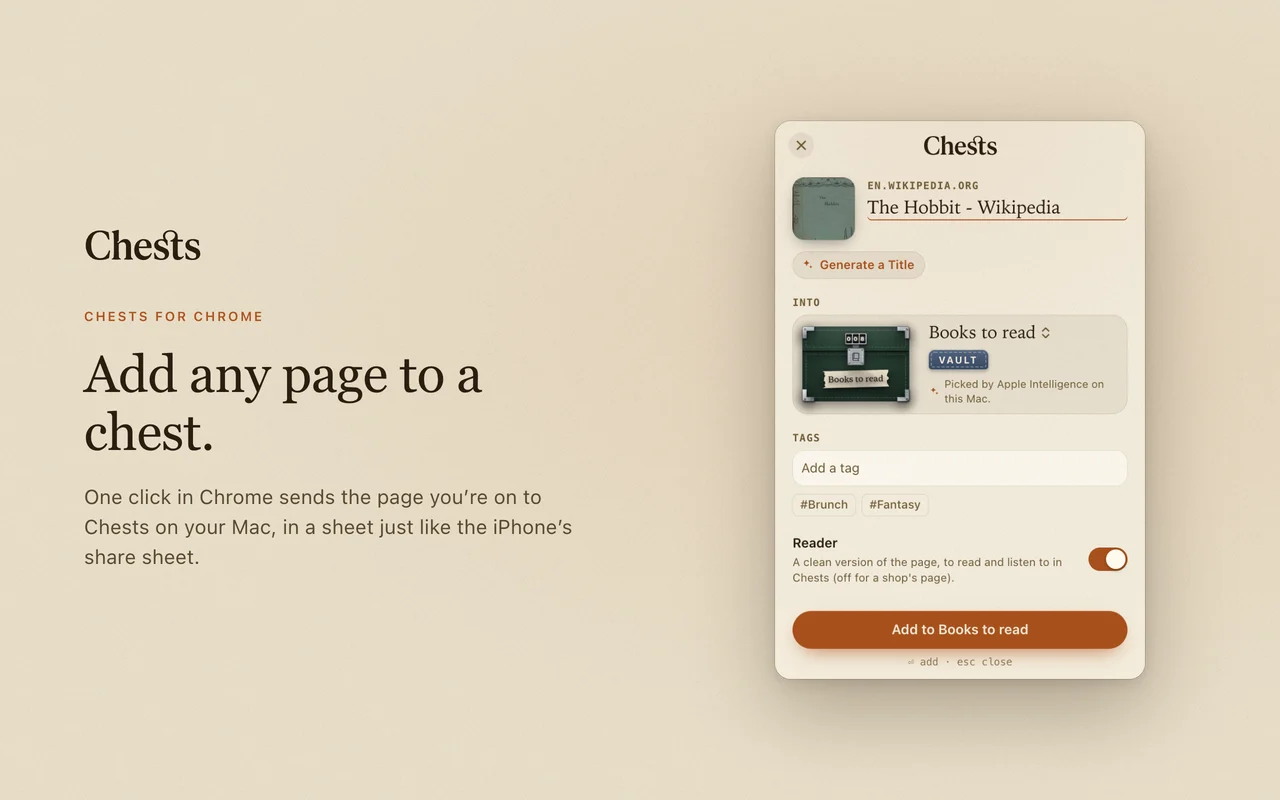
The page you’re on, into a chest, in one click. A sheet like the iPhone’s share sheet opens over the page: its title (or a better one from Apple Intelligence), the chest it goes into, your tags, the Reader.
Install
- Get Chests for Mac on the Mac App Store, and open it.
- In Chests, open Settings › Browser and turn on Add from Chrome.
- Add Chests for Chrome from the Chrome Web Store, then pin it: click the puzzle piece in the toolbar, then the pin beside Chests.
- Click the chest in the toolbar, then Connect. Your Mac asks you to confirm: check that both show the same code, and click Connect.
How it works
- Click the chest in the toolbar, or press ⇧⌘S (you can change it in chrome://extensions/shortcuts).
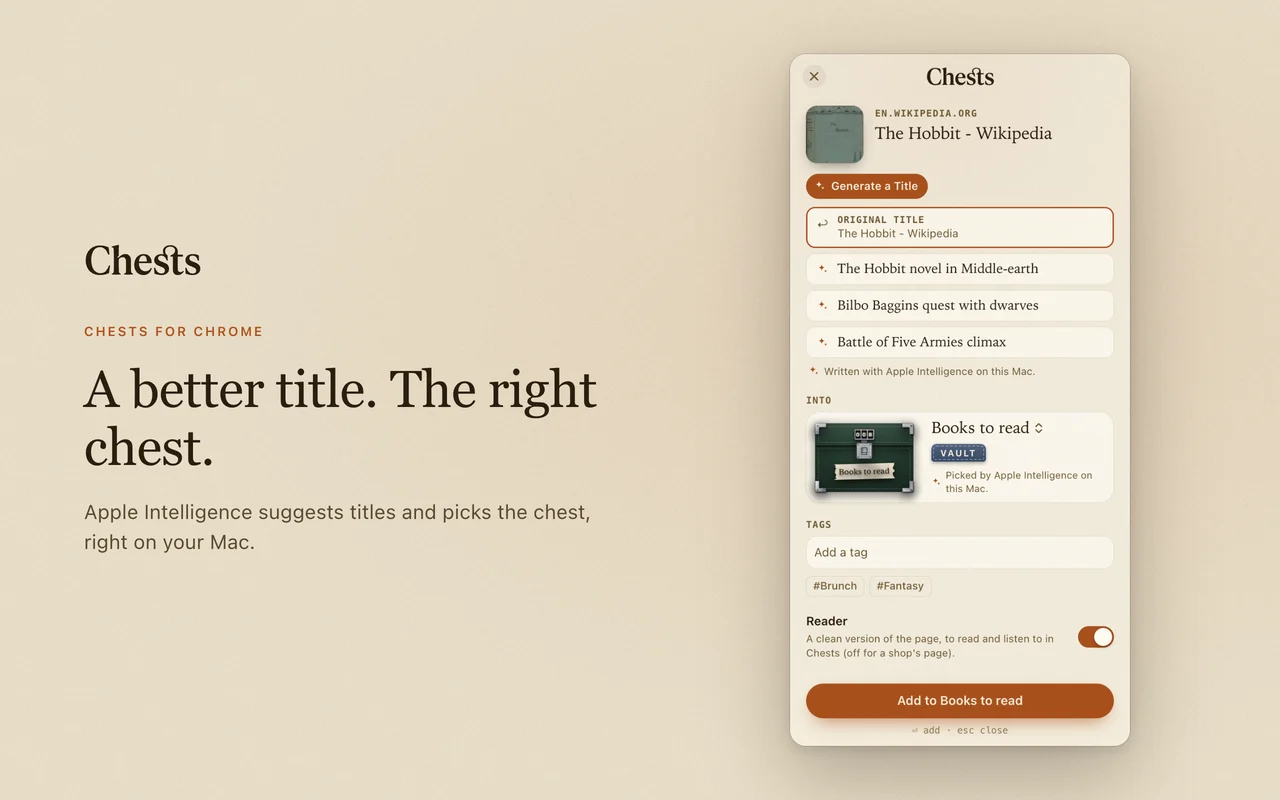
- The sheet shows the page with its picture. Generate a Title asks Apple Intelligence on your Mac for better ones.
- Into shows the chest, drawn as in the app, with its Feed or Vault; Apple Intelligence picks one for you. Click it to choose another.
- Add tags, keep the Reader on for articles, then press ⏎ or click Add. The item is in Chests, and iCloud brings it to your iPhone and iPad.
On YouTube
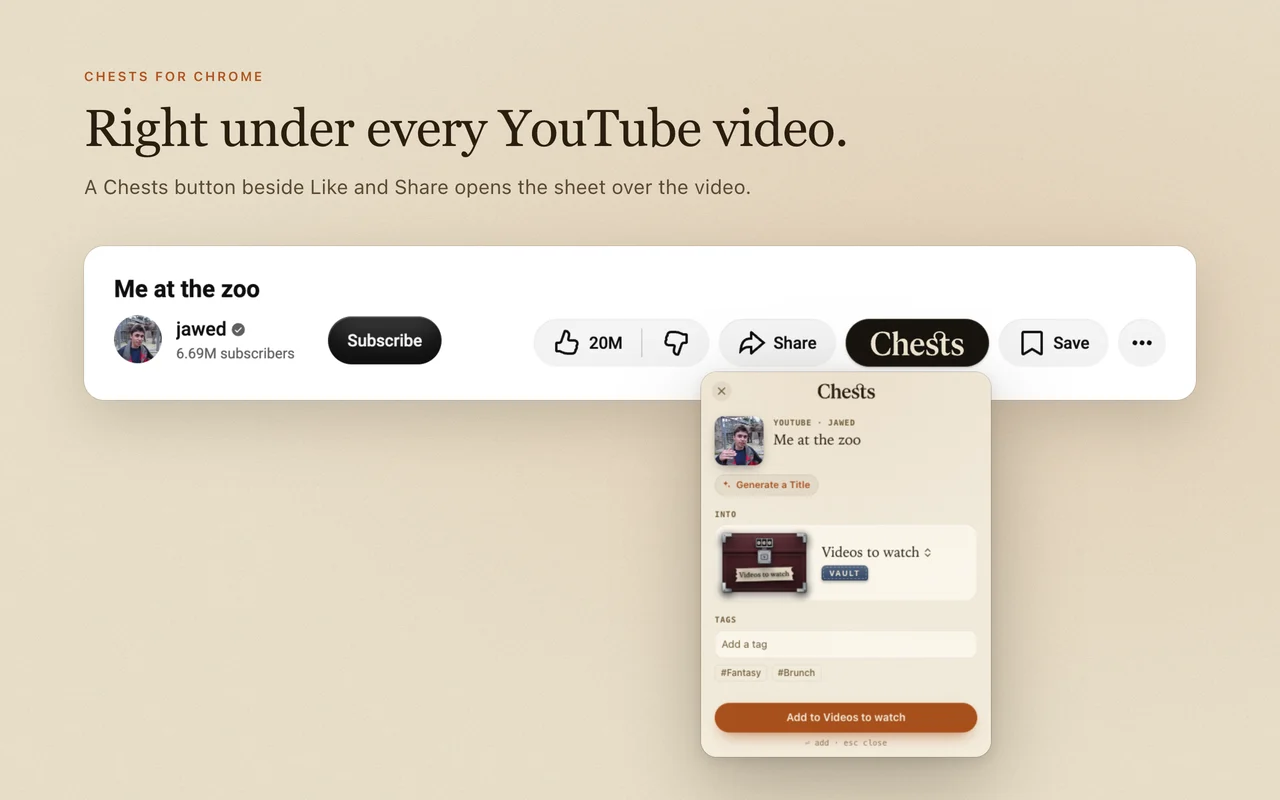
Under every YouTube video, beside Like and Share, a Chests button opens the same sheet, already filled with the video: its title, channel, length and thumbnail.
In Safari
Chests for Safari comes with Chests for Mac: nothing else to download. Turn it on in Safari › Settings › Extensions, and it works as it does here: the same sheet, the same Chests button under YouTube videos.
Private by design
The extension talks only to Chests on your Mac (127.0.0.1), never to a server. It reads the page you’re on only when you click it, and keeps nothing but the key your Mac gave it. Details in the privacy policy.
If it doesn’t work
- “Chests isn’t open”: the extension adds through the app; open Chests, then Try Again. Open Chests at Login in Settings › Browser keeps it ready.
- “Turn on Add from Chrome”: Chests › Settings › Browser › Add from Chrome.
- Connect it again: a browser disconnected in Settings › Browser has to connect again; your Mac asks you to confirm.
- Still stuck? Write to support@chests.app.